How to Type Different Fonts on a Keyboard: A Simple Guide
Changing a real font and creating styled Unicode text are two different things. Your keyboard usually types characters, while Microsoft Word and Google Docs apply fonts through formatting menus after you select the text.
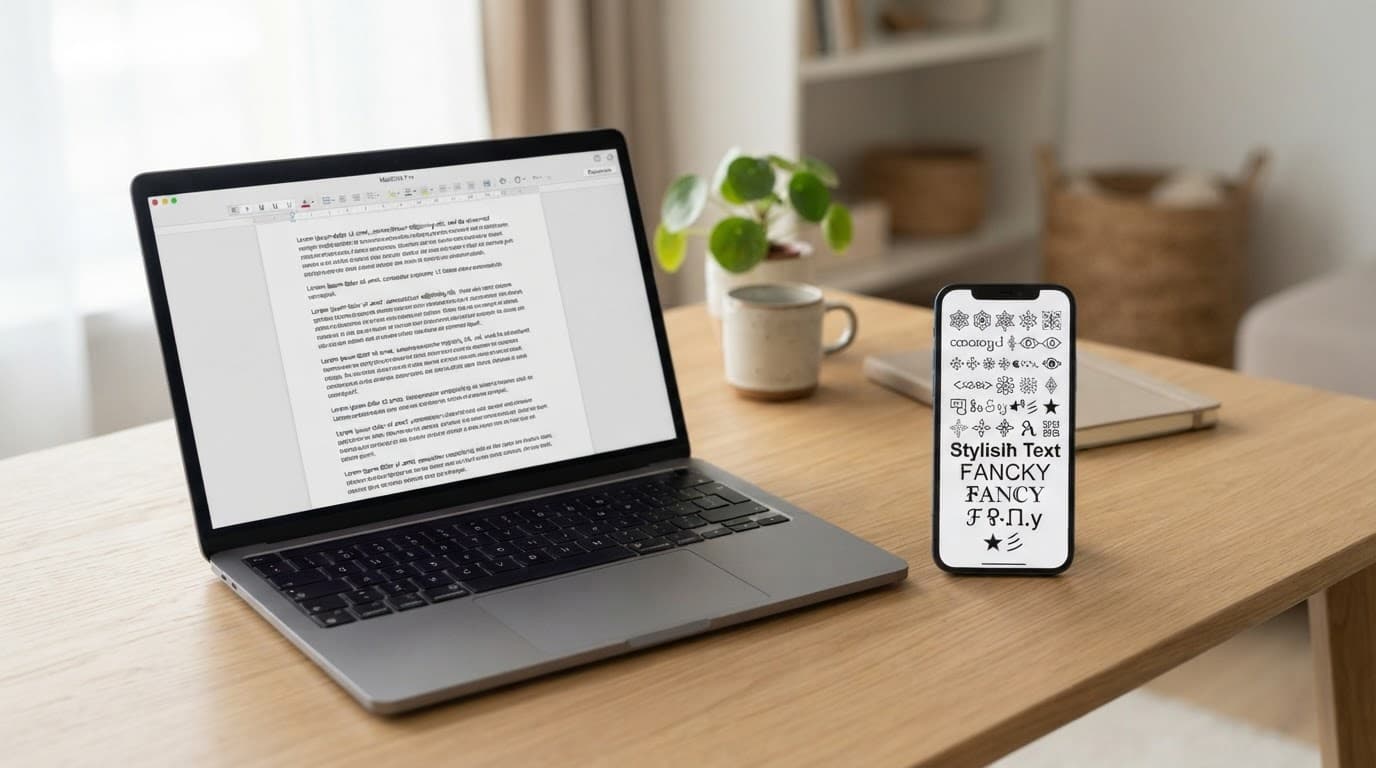
For social media, Unicode text can create bold or script-like styles without installing a font, but it may not display well everywhere. This guide covers the fastest ways to type different fonts in documents on Windows and macOS, plus styled text options for Android, iPhone, and social apps.
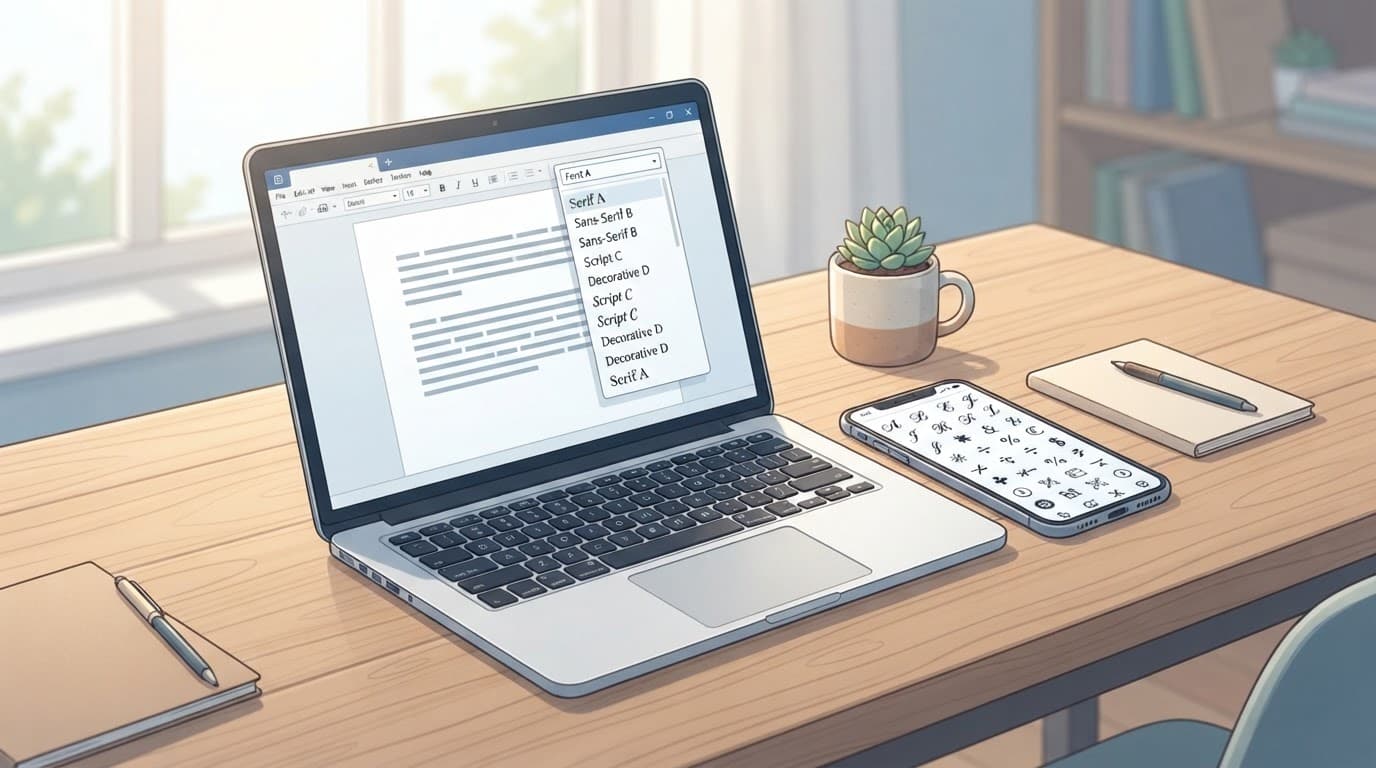
How to Type Different Fonts on Keyboard: Choose the Right Method
There is no universal keyboard shortcut that changes the font everywhere. Instead, choose a method based on where you plan to use the text: use an app's font menu for real document formatting, or use a Unicode generator for copy-and-paste styles in social media and chat apps.
For example, choosing Arial or Times New Roman in a document changes how normal letters appear. A Unicode generator can create bold, script, circled, or gothic-looking characters for a social post.
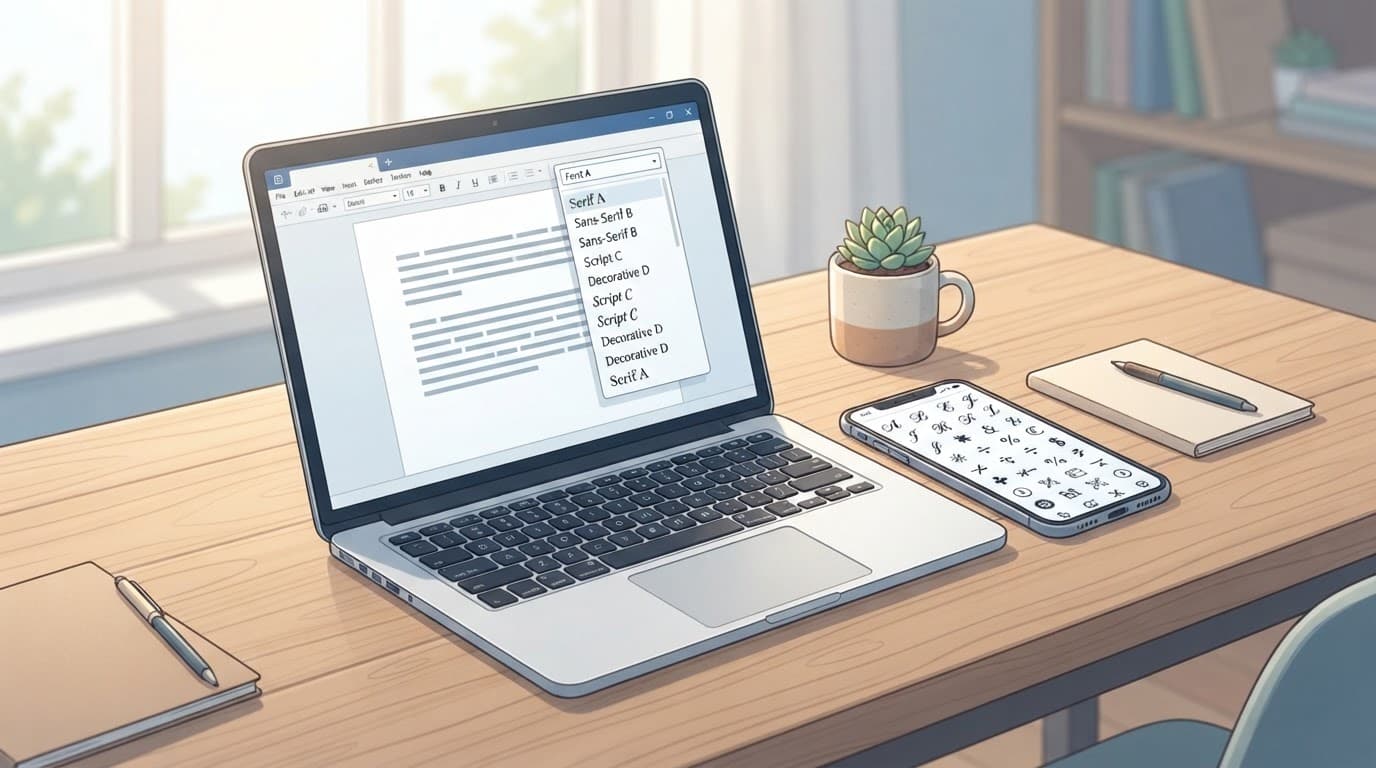
Use a Unicode Font Generator for Social Media and Chat Apps
A Unicode font generator changes your text into different characters. It doesn't install a font or apply formatting to the text field. Instead, it creates symbols that look like bold, italic, script, or other styles.
The basic process takes only a few steps:
- Type or paste your text into a generator.
- Select a style from the results.
- Copy the converted text.
- Paste it into a supported bio, caption, comment, or chat field.
Tools such as TextEditor, FontGenerate, ItalicFont, Coddy Tech, and Gate2Home may offer different style collections. Depending on the tool, you might find bold, italic, script, fraktur, monospace, small caps, fullwidth, circled, strikethrough, or upside-down text.
These styles may fail on older devices or apps that lack the needed characters. Screen readers can also read styled Unicode text in an unexpected way, so review how special characters affect screen readers before using it for important information.
Use the App's Font Controls for Real Font Changes
A document editor changes the display of your normal text. Select the words, open the font menu, and choose a font family, size, bold, italic, color, or another default style. The letters stay the same, so you can edit, search, copy, and select them normally.
This method works best for schoolwork, business documents, websites, headings, and other content that needs reliable formatting. Word processors and design apps also let you set default styles, which keeps the same font across an entire document.
Real font controls are also the safer choice for accessible content. Use readable fonts, clear sizes, and enough contrast. The Section 508 typography guidance advises avoiding hard-to-read script and highly stylized characters.
How to Change Fonts in Word and Google Docs
Microsoft Word and Google Docs let you change a real font after you select your text. You can change one word, a full paragraph, or the entire document. You can also save a font as the default for new files, but that setting does not reformat documents you already created.
Change the Font in Microsoft Word
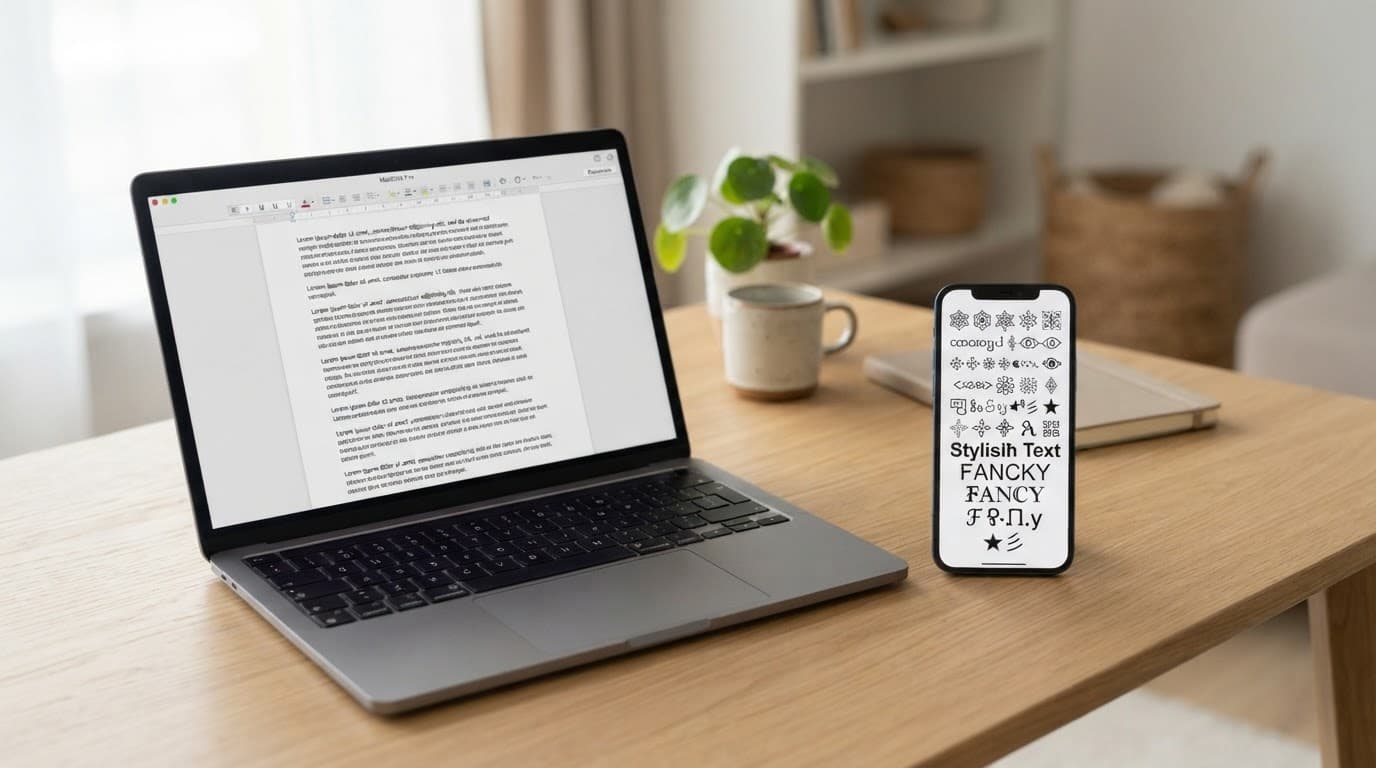
Word keeps its main font controls on the Home tab in the Font panel. After selecting text, use the font family box to choose Arial, Calibri, Times New Roman, or another installed font. The nearby size box changes the text size, while the bold, italic, underline, text color, and other buttons change its style.
Follow these steps:
- Select the text you want to change.
- Open the Home tab.
- Choose a font family and size in the Font panel.
- Select a style button, such as Bold or Italic, if needed.
For more settings, select the small Font dialog box launcher in the lower-right corner of the Font panel, or press Ctrl+D. Choose the font, size, and effects, then select Set As Default. You can apply the change only to the current file or to future files based on the Normal template. Microsoft's default font instructions cover this choice.
The Normal template stores Word's starting font settings. A saved default usually affects one computer and future documents based on that template. It does not automatically reformat every existing Word file.
Change the Font in Google Docs
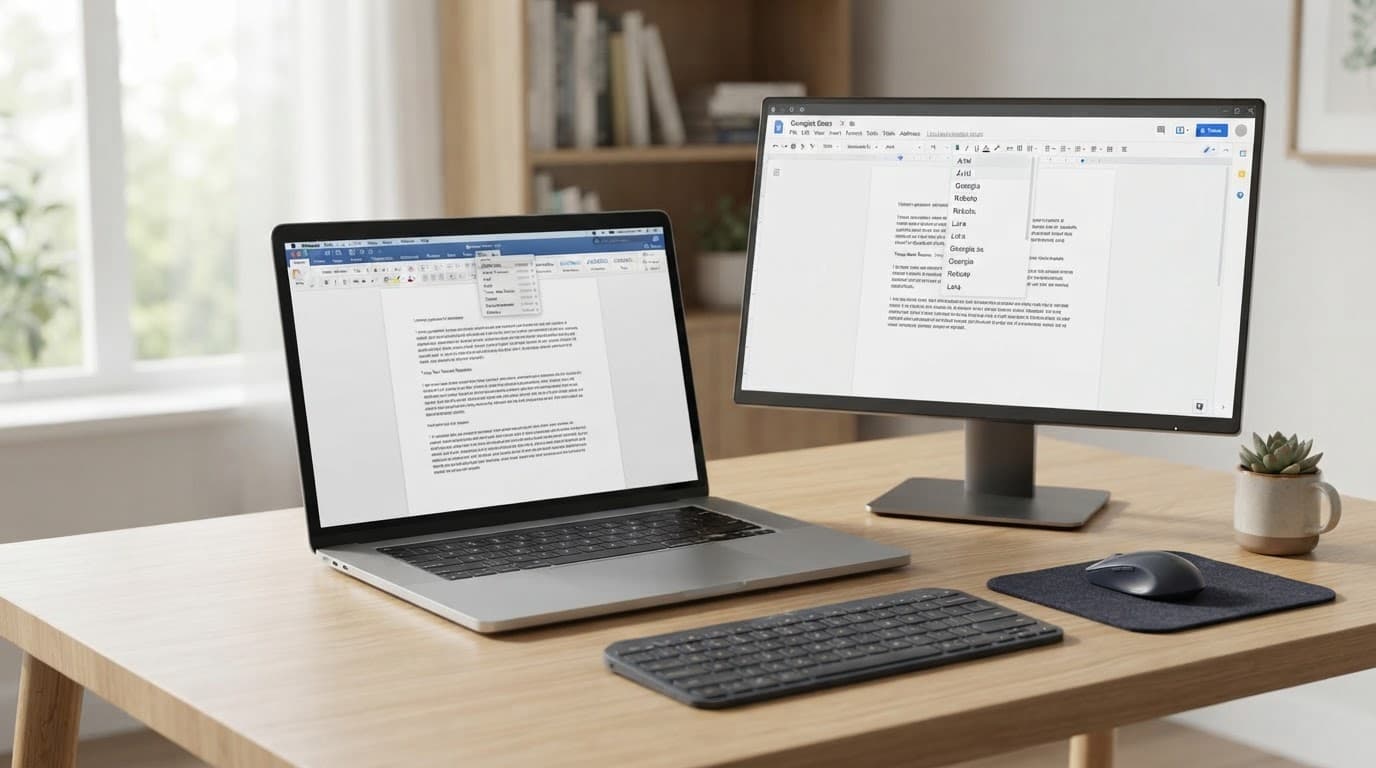
Google Docs uses the font dropdown in the toolbar. Select your text first, then open the dropdown and search for a font. You can also press Alt+/ on Windows or ChromeOS, or Option+/ on Mac, to search Docs menus and tools. Type a font name, then select it from the results.
Use these steps:
- Select the text you want to format.
- Open the toolbar font dropdown.
- Search for a font or choose More fonts.
- Pick a font and adjust the size or style.
To save the choice for future files, format some text first. Then open Format > Paragraph styles > Normal text > Update "Normal text" to match. Open the same menu again, choose Options, and select Save as my default styles.
Google Docs font settings change the document's formatting. They do not create Unicode fancy text. Unicode styles use different characters, while a Docs font changes how normal letters look.
Type Different Text Styles on Windows, Mac, Android, and iPhone
Your keyboard sends characters to the app. The app decides how those characters look. As a result, Windows, macOS, Android, and iPhone don't have one font switch that works everywhere.
Windows and macOS Keyboard Options
On Windows and macOS, choose a font inside the program where you type. In Word, select your text and use the font box on the Home tab. You can also press Ctrl+D on Windows to open the Font dialog box. Microsoft's Word keyboard shortcuts include other controls for font size and text emphasis.
Google Docs uses its own toolbar and menus. Select the text, open the font menu, and search for a font family. On Windows, Alt+/ searches Docs menus and tools. On macOS, press Option+/, then type the font name. Google also lists its formatting shortcuts in the Google Docs keyboard guide.
Installed fonts may appear in Word, Pages, Photoshop, or another desktop program, but they won't appear in every app. A font must be installed correctly, and the program must support that font. Web apps may offer their own font lists instead of showing every font on your computer.

Android and iPhone Text Styling
Android and iPhone keyboards usually enter normal text. Individual apps may add buttons for bold, italic, fonts, or profile styling, but those controls vary by app.
For a style that an app supports, open a Unicode text generator in your mobile browser. Type your message, choose a style, copy the converted characters, and paste them into an Instagram bio, TikTok caption, Discord name, or Slack message. The result depends on the destination, so test it before publishing. Some apps remove the styling, while others show blank boxes or replace unusual characters with plain text.
Why Fancy Keyboard Fonts Sometimes Do Not Work
Fancy keyboard fonts can fail because they use alternate Unicode characters instead of a real font. The app, device, and available font support decide whether those characters display correctly.
Fix Missing Symbols, Square Boxes, and Broken Styles
Empty squares, question marks, or missing letters usually mean the app cannot display one or more Unicode characters. Try these fixes in order:
- Choose a simpler style, such as common bold or italic characters.
- Paste the text into another app to see whether the problem is limited to one platform.
- Update the app, browser, or device software.
- Use a supported font or the app's built-in formatting tools.
Decorative Unicode characters are less consistent than common bold or italic variants. Some platforms remove unusual symbols, replace them with normal letters, or display them in a different style. Older devices may also lack the font data needed to show certain characters.
Choose Normal Formatting for Accessibility and SEO
Unicode fancy text can cause problems with screen readers, copying, search systems, and indexing. A styled word may look bold, but it uses different characters instead of normal letters with bold formatting. Screen readers may pronounce those characters one by one or skip them. Deque explains why screen readers handle symbols differently.
Use real headings for websites and documents. Choose the Bold button for emphasis, and change the font through the app's font settings. These options keep text easier to read, copy, search, and index. The W3C guidance on decorative Unicode characters also separates visual decoration from meaningful content.
Unicode styles work best for short decorative text, such as a social media bio. When compatibility, accessibility, or search visibility matters, normal font formatting is the safer choice.
Frequently Asked Questions
These questions cover the parts of keyboard fonts that often cause confusion. The right answer depends on the app, device, and type of text you want to create.
Can I use a keyboard shortcut to switch fonts? ▼
Microsoft Word lets you create custom shortcuts for specific fonts through its keyboard settings. Windows itself does not have one shortcut that changes fonts in every program.
Why do fancy letters look different on another device? ▼
Fancy Unicode text uses separate characters, so each device needs a font that supports those characters. The Unicode Standard's mathematical symbols guide explains that many styled letters have compatibility links to normal Latin and Greek letters.
Can I install new fonts on my phone? ▼
Yes, but the steps depend on your phone and the app. On iPhone, you can install fonts through a font app, then manage them under Settings > General > Fonts. Only apps that support custom fonts will show them.
How do I type a font that is not installed? ▼
Install the font on your computer first, then close and reopen the app where you want to use it. If the font still doesn't appear, check that you installed the correct file type and that the program supports custom fonts.
Can I change the font while I type? ▼
Most document apps let you choose a font before typing, so new text uses that font. If you change the font after typing, select the existing text first, then apply the new choice.
Which font method works best for email? ▼
Use the email app's built-in formatting tools for messages that need clear reading and reliable display. Unicode styles may work in short signatures or casual messages, but plain text remains safer across email apps and devices.