How to Use Fonts on iPhone: The Complete Guide for Apps, Keyboards, and Custom Styles
Apple iPhones feature clean typography powered by Apple's custom San Francisco typeface. While San Francisco provides exceptional clarity for reading menus, creative users often want to install custom typefaces for document editing, digital illustration, and personalized social media bios.
iOS separates font usage into distinct categories. You can install real TrueType and OpenType font files for design apps, change your lock screen clock typography, or use online generator tools for messages and social profiles. This guide explains how to use fonts on your iPhone step by step.
Understanding How iOS Handles Typography
Apple protects the core iOS user interface for security and stability. As a result, you cannot change the system-wide font used across the Settings app, home screen icons, or native menus.
Instead, Apple provides a secure font management API. This system allows authorized applications to access third-party font files installed through verified configuration profiles.
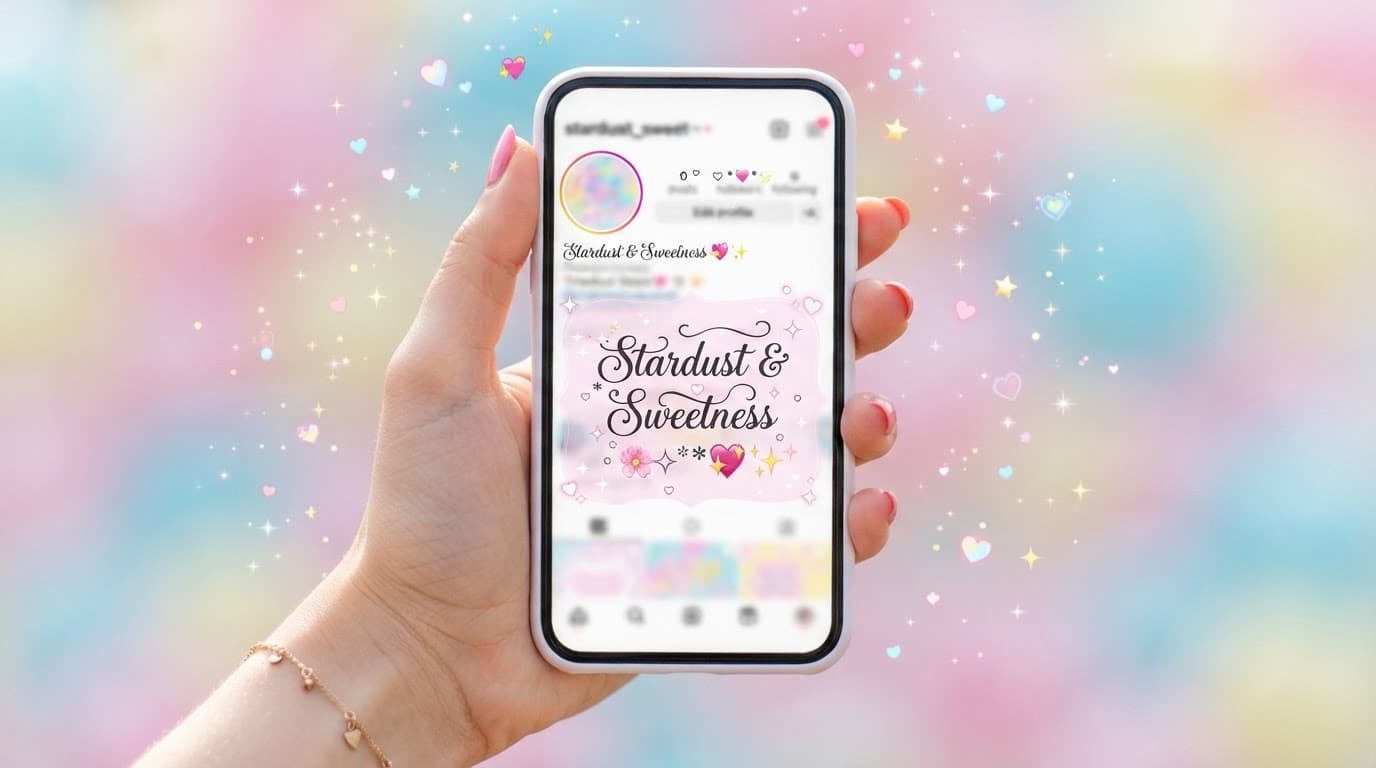
When you want decorative text for chat apps, Instagram bios, or TikTok captions, you can use a cute font generator. These tools convert standard letters into Unicode symbols that display everywhere without profile installations.
Method 1: Install Real Font Files Using iFont on iOS
To use custom fonts in creative editing apps like Pages, Keynote, or Procreate, follow these steps to download custom fonts and install them:
- Download iFont from the App Store. Search for iFont on the Apple App Store and download the free utility.
- Download your font in Safari. Open Safari and visit a font repository like Google Fonts or DaFont. Download your chosen font ZIP file to your iPhone.
- Import the font into iFont. Open the Files app, locate your downloaded font file, tap Share, and select iFont from the apps list.
- Generate the configuration profile. Inside iFont, tap the Install button next to your imported font. Tap Allow when Safari prompts you to download a configuration profile.
- Install the profile in iOS Settings. Open your iPhone Settings app. Tap the Profile Downloaded banner near the top of the menu. Tap Install in the upper corner, enter your iPhone passcode, and confirm the installation.
Your new font is now registered on your iPhone. Open Apple Pages or Procreate, highlight your text, and choose your new typeface from the app font menu.
Method 2: Customize the iPhone Lock Screen Font (iOS 16, 17, and 18)
Apple lets you customize your lock screen clock font natively without third-party apps.
Wake your iPhone and unlock it with Face ID or Touch ID, but stay on the lock screen. Press and hold your finger on the display until the wallpaper gallery opens. Tap the Customize button at the bottom of the screen, then select Lock Screen.
Tap the digital clock display. A font and color menu will slide up from the bottom. Choose from multiple typographic styles including serif, sans-serif, rounded, and bold numerals.
Use the color slider to select a matching hue, adjust the weight slider to make numbers thicker or thinner, and tap Done in the top right corner to save your new lock screen.
Method 3: Use Unicode Fonts for iMessage, WhatsApp, and Bios
Chat apps like WhatsApp, iMessage, and social media platforms do not read iOS configuration profiles. When you want to send styled text to friends or format your profile bio, use web-based Unicode tools.
Open your mobile browser and visit a cool fonts generator. Type your message into the text box. The generator instantly displays your words in cursive fonts, bold letters, and small caps.
Tap the copy button next to your favorite style. Open your chat app or profile editor, tap into the text field, and paste the converted characters. The recipient will see the styled letters immediately on their screen.
Comparison of iPhone Font Methods
This table breaks down each method for using fonts on an iPhone:
| Method | Best For | Requires App? | Compatibility |
|---|---|---|---|
| Configuration Profile (iFont) | Pages, Keynote, Procreate, Cricut | Yes (iFont) | Supported Design Apps |
| Lock Screen Customizer | Clock display on Lock Screen | No (Native iOS) | iPhone Lock Screen Only |
| Unicode Web Generators | Instagram, TikTok, iMessage, WhatsApp | No (Web Browser) | Universal Across All Devices |
| Third-Party Keyboards | Direct typing in chat and notes | Yes (Keyboard App) | Any Text Input Field |
How to Manage and Delete Installed Fonts on iPhone
Over time, installing multiple font packages can clutter your device storage. You can view and remove installed fonts directly through iOS settings.
Open your iPhone Settings app. Tap General, then select Fonts.
This screen lists every third-party font family currently installed on your device. Tap on any font family to inspect individual weights and copyright details.
To delete an unneeded font, swipe left across its name and tap Remove, or tap Edit in the upper right corner, select the fonts you want to remove, and tap the trash icon.
Frequently Asked Questions
Can I change the system-wide font on my iPhone without jailbreaking? ▼
Apple does not allow users to change the primary system font used across iOS settings and home screen app labels. You can customize the lock screen clock font, install fonts for creative apps like Pages and Procreate, or use Unicode text tools for messages and bios.
Where do installed font files go on an iPhone? ▼
Custom fonts installed through configuration profiles appear under iOS Settings > General > Fonts. You can review font families, check copyright information, and remove unneeded files directly from this menu.
Is it safe to give full access to third-party font keyboards on iOS? ▼
Granting full access allows a keyboard app to transmit keystroke data over the internet. Only grant full access to reputable keyboard developers that you trust, and switch back to Apple's default keyboard when entering passwords or credit card numbers.
Why do custom fonts not appear inside the Instagram or TikTok app? ▼
Social media apps do not read iOS configuration profile fonts. To use custom text styles in your bio or caption, use a web-based Unicode text generator and paste the converted characters into the app.
How do I delete custom fonts from my iPhone? ▼
Open iOS Settings, tap General, and select Fonts. Tap on the font family you want to remove, swipe left or tap Edit in the upper corner, and tap Remove.